Why WordPress Plugins Break Your Website (And How to Fix Them Like a Pro)
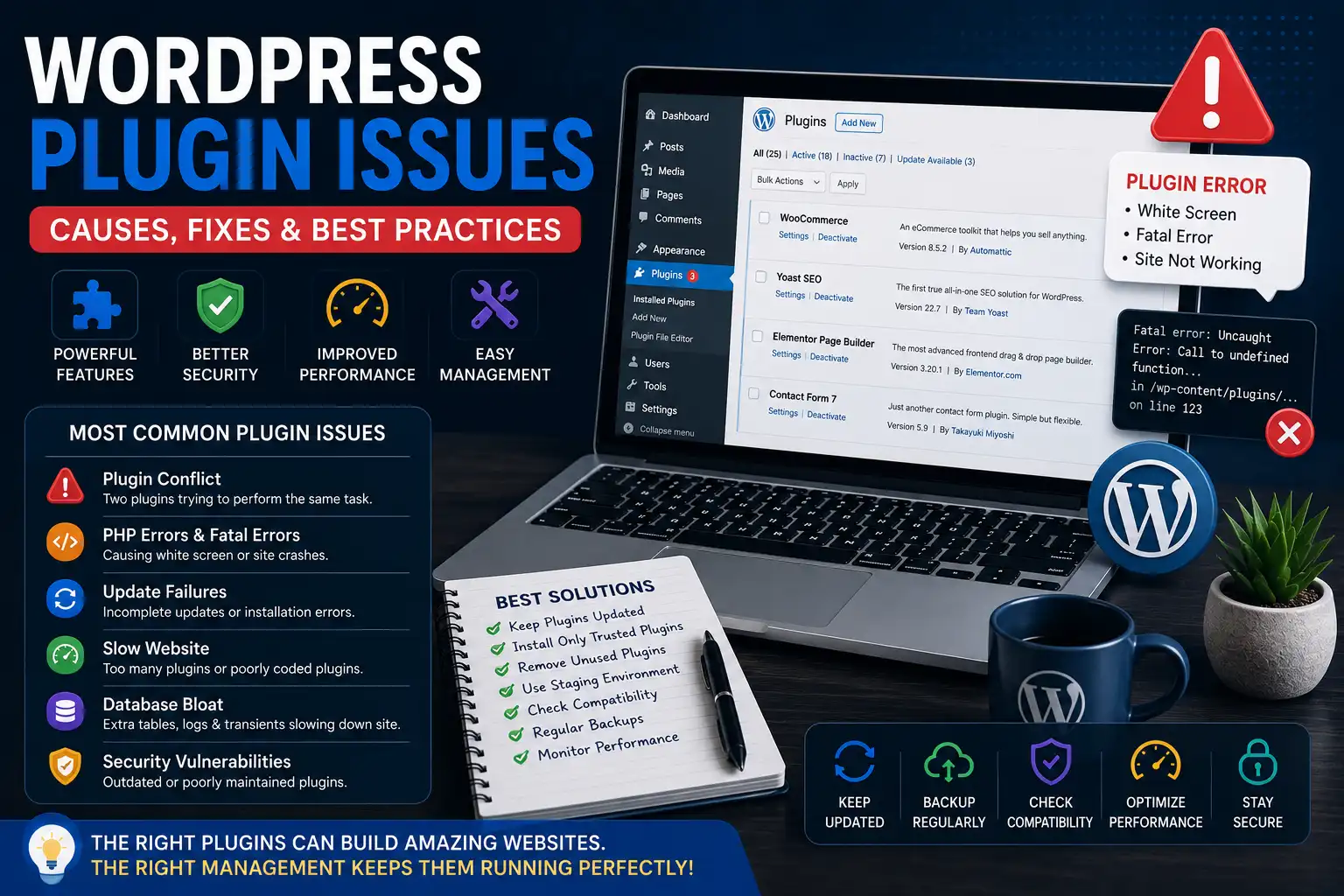
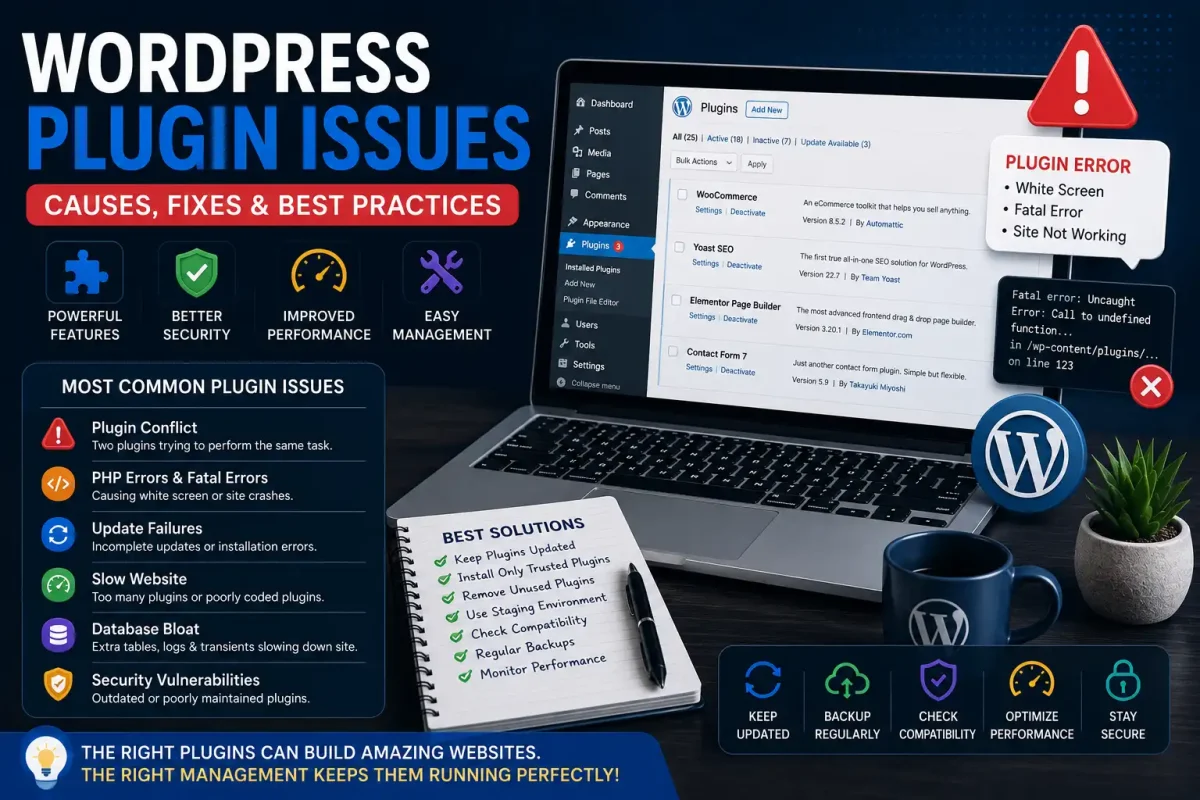
WordPress plugins make it easy to add powerful features to your website without writing code. From SEO tools and page builders to WooCommerce extensions and security solutions, plugins are the backbone of millions of WordPress websites.
However, they can also become the biggest source of website crashes, slow loading speeds, security vulnerabilities, and compatibility issues.
In this guide, we’ll explore the most common WordPress plugin problems and show you how to solve them efficiently.
1. Plugin Conflict After Installation
Symptoms
- Website layout breaks
- Admin dashboard stops working
- Buttons disappear
- JavaScript errors appear
- White screen after activation
Why It Happens
Two plugins may use incompatible functions, outdated libraries, or duplicate JavaScript files.
Solution
- Deactivate recently installed plugins.
- Activate plugins one by one to identify the conflict.
- Check browser console errors.
- Update both plugins to the latest version.
- Contact the plugin developer if necessary.
2. White Screen After Updating a Plugin
Symptoms
- Blank homepage
- Blank admin area
- HTTP 500 Error
Cause
Fatal PHP errors caused by incompatible code.
Fix
Rename the plugin folder via File Manager or FTP:
wp-content/plugins/plugin-name
WordPress will automatically deactivate the plugin.
Then enable debugging:
define('WP_DEBUG', true);
Review the error logs to identify the problem.
3. Plugin Update Failed
Many users see:
Update failed: Could not copy file.
or
Installation failed.
Possible Causes
- Incorrect file permissions
- Low disk space
- Server timeout
- Memory limit reached
Fix
- Set folders to 755
- Set files to 644
- Increase PHP memory
- Check hosting storage usage
- Retry the update
4. Too Many Plugins Slow Down WordPress
Installing 60 plugins doesn’t necessarily mean better functionality.
Each plugin loads PHP code, database queries, CSS files, and JavaScript.
Best Practice
Instead of installing multiple small plugins:
- Use multi-purpose plugins carefully.
- Remove duplicate functionality.
- Delete inactive plugins.
- Replace abandoned plugins.
Quality matters more than quantity.
5. Plugin Causes High CPU Usage
Symptoms include:
- Slow admin panel
- Hosting resource warnings
- CPU limit exceeded
- Website becomes unresponsive
Common Culprits
- Backup plugins
- Broken cron jobs
- Real-time statistics plugins
- Heavy security scanners
Solution
- Disable unnecessary scheduled tasks.
- Run backups during low-traffic hours.
- Monitor resource usage from hosting control panel.
- Replace resource-heavy plugins with lightweight alternatives.
6. Memory Limit Errors
Error:
Allowed memory size exhausted
Usually occurs with Elementor, WooCommerce imports, or page builders.
Fix
Increase memory:
define('WP_MEMORY_LIMIT', '512M');
Also remove plugins consuming excessive resources.
7. Database Bloat from Plugins
Many plugins leave behind:
- Temporary tables
- Log files
- Expired transients
- Orphaned metadata
Over time this can significantly slow your website.
Solution
- Optimize database monthly.
- Remove unused plugin tables.
- Delete unnecessary revisions.
- Clean expired transients.
8. Security Risks from Outdated Plugins
Hackers often target plugins that haven’t been updated for months.
Risks include:
- SQL Injection
- Remote Code Execution
- Cross-Site Scripting
- Privilege Escalation
Prevention
- Update plugins immediately.
- Remove abandoned plugins.
- Use strong administrator passwords.
- Enable two-factor authentication.
- Install a web application firewall.
9. Plugin Compatibility with New WordPress Versions
After a major WordPress update, some plugins may stop functioning.
Best Practice
- Test updates on staging.
- Read changelogs before upgrading.
- Wait a few days if a plugin hasn’t confirmed compatibility.
- Keep backups before every major update.
10. Plugins Loading Unnecessary Assets
Many plugins load CSS and JavaScript on every page—even when not needed.
For example:
- Contact form CSS on blog posts
- Slider scripts on checkout pages
- WooCommerce assets on non-store pages
Solution
Unload unnecessary assets using performance optimization techniques or plugin-specific settings to improve page speed.
Best Practices for Plugin Management
Install Only Trusted Plugins
Choose plugins with:
- Regular updates
- Active support
- Good reviews
- Large user base
Keep Everything Updated
Always update:
- WordPress Core
- Themes
- Plugins
- PHP Version
Backup Before Updates
Create a full backup before installing or updating plugins.
Use Staging Sites
Never test new plugins directly on a live business website.
Plugin Health Checklist
✅ Updated recently
✅ Compatible with current WordPress version
✅ No abandoned development
✅ Minimal resource usage
✅ Active support available
✅ Good user ratings
✅ Secure coding practices
Final Thoughts
Plugins are one of WordPress’s greatest strengths, but they require proper management. Most website crashes, slow loading speeds, and security issues can be traced back to outdated, incompatible, or poorly optimized plugins.
By auditing your plugins regularly, testing updates in staging environments, and keeping your website clean, you can maintain a fast, secure, and reliable WordPress installation.
If you’re looking for high-quality WordPress themes, GPL plugins, PHP scripts, HTML templates, and WHMCS modules to enhance your projects, ThemesTUB offers a growing collection of resources designed for developers and website owners alike.